Note: This command operates in conjunction with CygNet Dispatch. For more information about the CygNet Dispatch product, contact your Account Manager or CygNet Sales.
Export: Completed Jobs (EXPJOB via script) is a system-level command that triggers the FMS service to automatically export completed jobs as an XLSX file. For each eligible device the command resolves to (specified group or device Nodes) the service will gather the completed jobs data from the database, based on configured parameters including date range and job type, and export it as an XLSX file to the designated file directory location. The directory is relative to the machine hosting your FMS service.
Note: This command is available only via the Master Scheduling Service in CygNet Explorer or via scripting (not through the FMS Explorer user interface).
You must have proper security authorization to execute this command. See FMS Security Events (and JOB security event) for information about configuring security access for FMS commands.
See Scheduling FMS Command Tasks in the MSS for more information about scheduling commands.
See CxFms for more information about scripting commands.
The following command definition properties apply to Export: Completed Jobs commands, when scheduling, creating, or editing commands via the Master Scheduling Service (MSS) in CygNet Explorer.
| Property | Description |
|---|---|
|
FMS service |
Select a Site.Service for the command from the available FMS service list in the drop-down menu. |
|
Command |
Select the desired Command name from the drop-down menu. See FMS Commands for more information about available command types. |
|
Priority |
Select a processing queue Priority for the command from the drop-down menu. Options from least to greatest priority are as follows.
Default value is Low level processing queue priority. |
|
Logging |
Select a Logging level for the command results from the drop-down menu. Options are as follows.
Default value is Low level logging when scheduling a command via the MSS service in CygNet Explorer. Default value is High level logging when creating or running an ad-hoc command in FMS Explorer or via the FMS service in CygNet Explorer. |
The following command parameters apply to Export: Completed Jobs commands, when scheduling, creating, or editing commands via CygNet Explorer or scripting.
| Parameter | Description | Type | Required | Usage Notes |
|---|---|---|---|---|
|
ExStDate |
Start date |
DATE |
Required |
Double-click to access the Select Start Date dialog box. Select the starting date and time of the range for which to export completed job records. See Notes * below this table. See Selecting Date and Time for more information. |
|
ExEndDate |
End date |
DATE |
Required |
Double-click to access the Select End Date dialog box. Select the ending date and time of the range for which to export records. See Notes * below this table. See Selecting Date and Time for more information. |
|
ExPath |
Directory to export file |
File Directory |
Required |
Double-click to access the Enter Directory to Export File dialog box. Type the directory location for the file into the text box or click ... to access the Browse for Folder dialog box, browse to the directory location, and then click OK. Note: The directory specified is relative to the computer hosting the FMS service. See Notes ** below this table. |
|
ExFileNm |
Name of export file |
File Name |
Required |
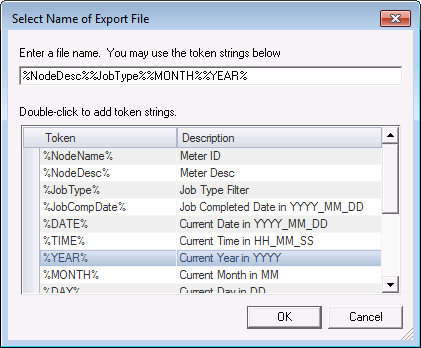
Double-click to access the Select Name of Export File dialog box. Type a file name into the text box and/or use tokens to define an export file name. See Notes *** below this table. |
|
JobType |
Job type |
STRING |
Optional |
If used, enter the type of the job to export. Double-click to access the Enter Job Type dialog box, and type a name into the text box. This parameter is optional. If not provided, the default value is * (multiple character wildcard); run the command for all job types. |
*Notes:
* Start/End dates - Make sure that the times you request are relative to the computer hosting your FMS Service, as there is no timestamp conversion between the parameters specified in the command and the data in the database. The service assumes the start of the day for the starting date/time and the end of the day for the ending date/time, therefore requesting a time range from T to T will yield one day of data, and from T-1 to T will yield two days of data. If only one day of data is desired when using relative date/time, the start and end date/times must therefore be the same.
** Directory to export file - Make sure that you are cognizant of the system in which you are specifying the file location. The file location selected when you Browse for Folder will be relative to your local computer file system, whereas the file location generated when the command is executed will be relative to the computer hosting your FMS Service, which could be a separate system.
*** Name of export file - Make sure that the specified file name does not already exist in the specified destination, or it will be overwritten by this command and could cause accidental data loss. File name collision is not detected for this command.
Use the Device descriptor(s) section of the dialog box to define applicable group or device Nodes to include in the Export: Completed Jobs action.
See Scheduling FMS Command Tasks in the MSS for more information.
You can use text, tokens, or both, to define an export file name in the MSS. A token is a text string enclosed by percent signs (%sampletext%), that represents a described value. The token will be replaced with the value it represents. Tokens are used several places in CygNet Software to define dynamic text substitutions, as described for the specific usage.
To Define an Export File Name in the MSS

|
|
|

